🖥️ Remote Support Instructions
Follow these simple steps so we can help you remotely
Go to Chrome Remote DesktopGo to Google Remote Desktop
Open your web browser (Chrome, Edge, etc.) and go to:
remotedesktop.google.com/supportMake sure you are logged into your Google account.
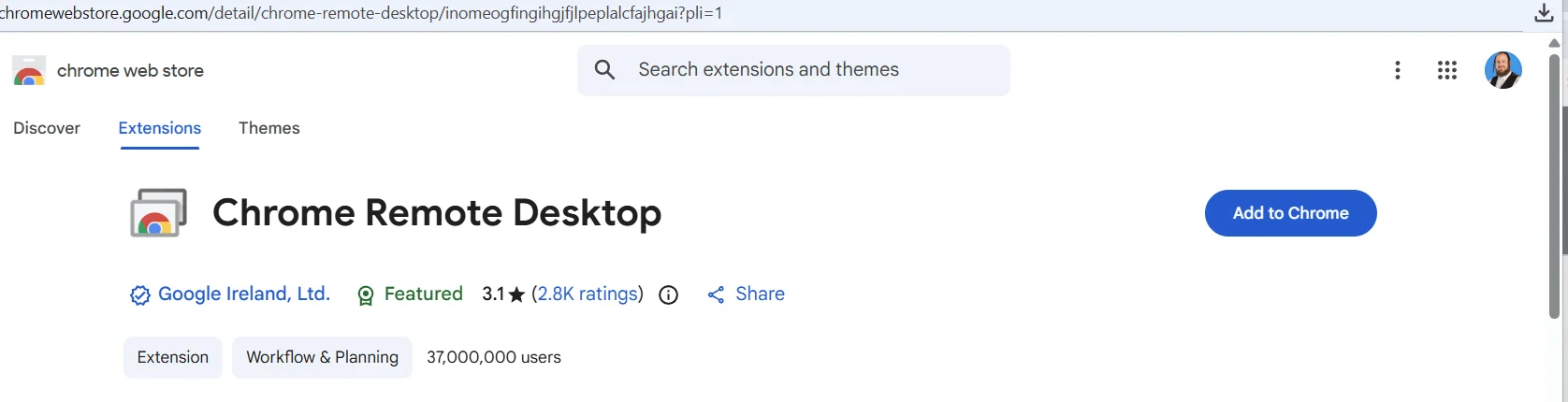
Download the Extension
If this is your first time, you'll need to add the Chrome Remote Desktop extension. Click Add to Chrome.
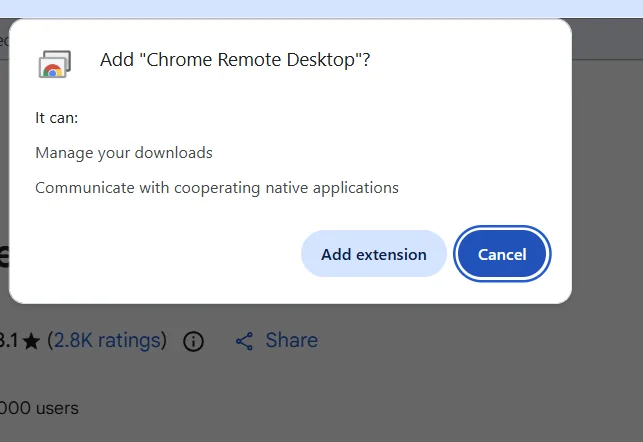
Confirm the Extension
A popup will appear asking for permission. Click Add extension.
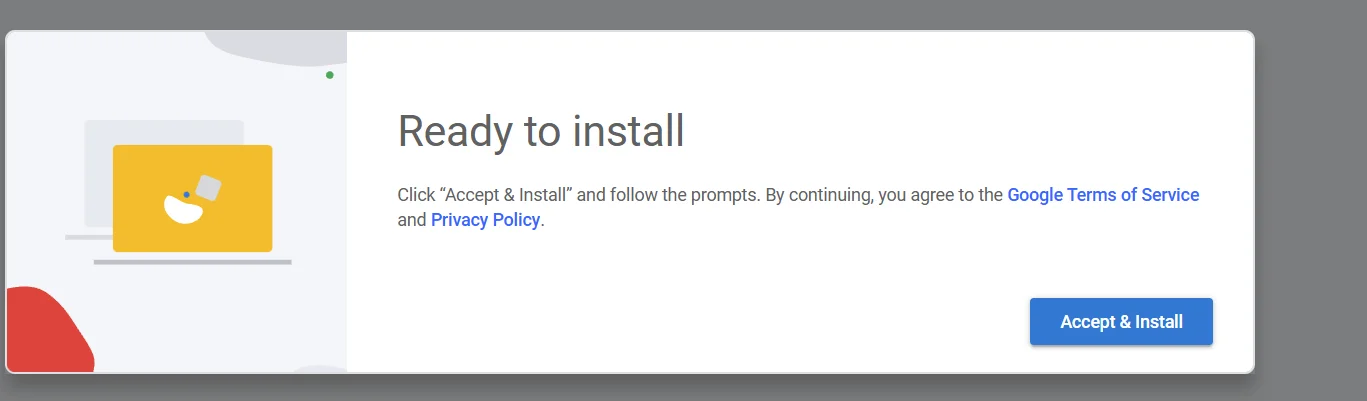
Install the Host Application
Click Accept & Install to download the installer file.
Run the Installer
Find the downloaded file chromeremotedesktophost.msi in your Downloads folder and double-click it to install.
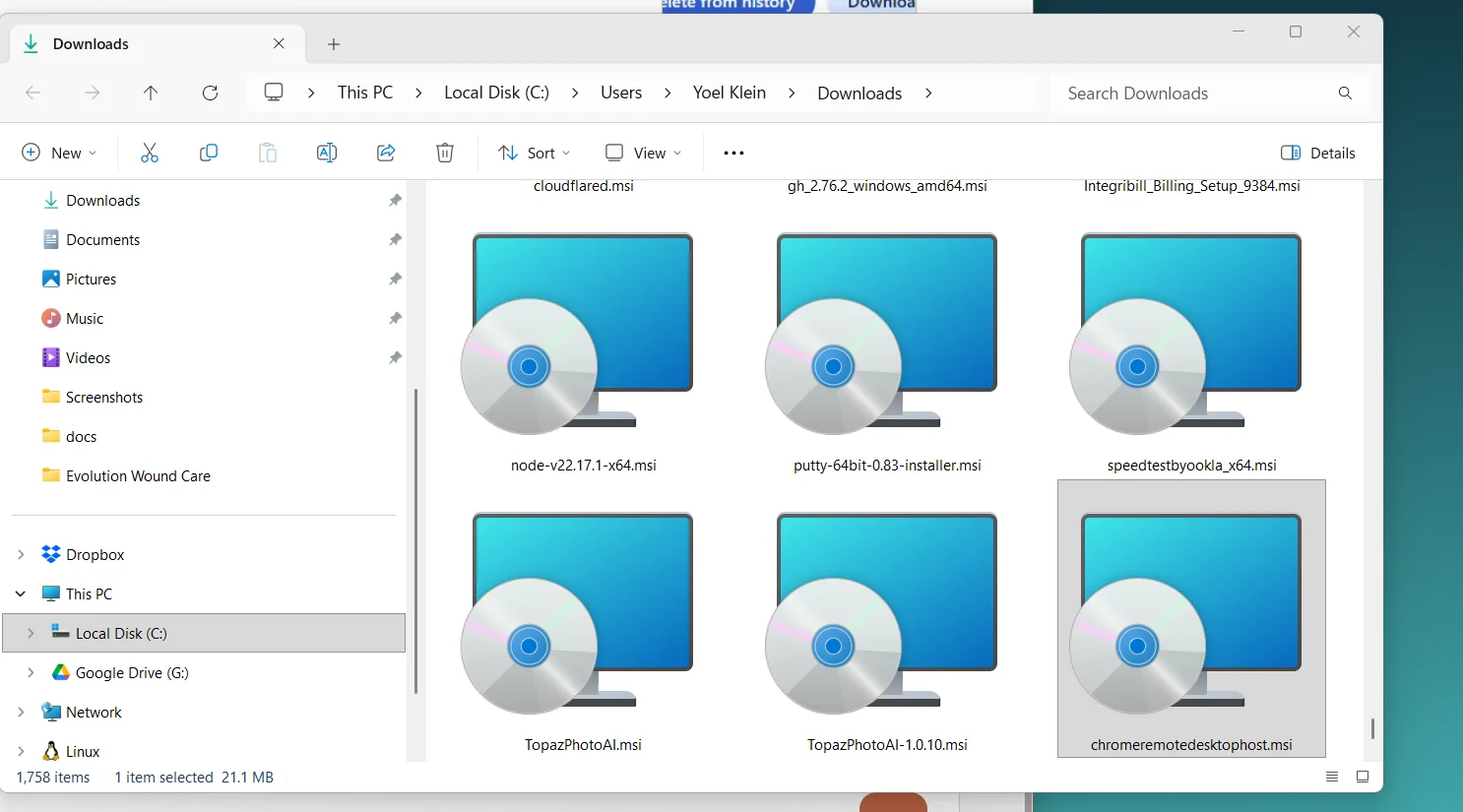
Follow any prompts to complete the installation.
Generate Your Access Code
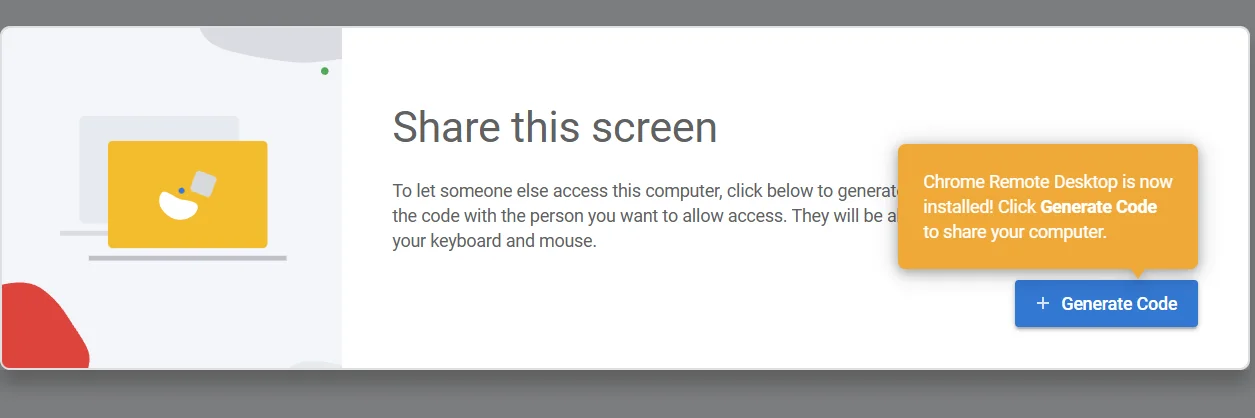
Once installed, go back to the browser and click the + Generate Code button.
Share the Code With Us
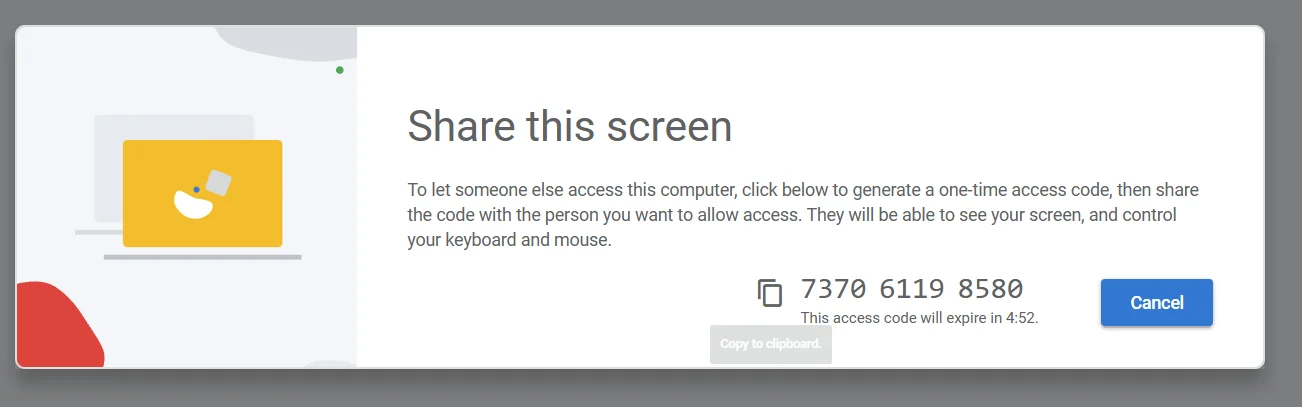
A 12-digit code will appear on your screen. Tell us this code over the phone or send it to us.
Allow the Connection
When we connect, you'll see a prompt asking to confirm. Click Share to allow us access.
© 2026 Skytek Telecom — Business Phones Done Right!